
Explore this mobile guide
Choose your jlmayon mobile access method
The jlmayon(mayonjl) mobile guide explains browser access and the checks to make when a separate application is offered. You can read jlmayon.net without installing additional software. A download destination, when published, is a separate option that should be reviewed for compatibility, publisher identity and installation requirements before you proceed.
A website, a home-screen shortcut and a native application can look similar while operating differently. Browser access uses your existing browser to load pages. A shortcut provides a convenient starting point for a website. A native application requires a compatible installation and may request device permissions. Choose according to the actual service's supported methods and your needs.
The existence of an App page does not establish that software is available for every device or location. If no download button appears, do not assume a similar application found elsewhere is the intended one. Continue with supported browser access or review published contact information for clarification about a download.
Use a mobile browser
Open jlmayon.net in your usual browser and review the published access cards. After following a route, inspect the final address before entering account information. A redirect can change the domain, so the address shown after loading is the relevant destination to check. Stop if the result is unexpected or a certificate warning appears.
Bookmark a checked address if you plan to return. Use a clear bookmark name so it remains distinguishable from unrelated pages. If a later visit redirects differently, review that change rather than assuming the saved bookmark proves the destination has stayed the same. Familiar artwork alone does not identify a website.
Some browsers offer an option to add a page to the home screen. Read the prompt to understand what is being added. A shortcut does not automatically provide offline use, account verification or the features of a native application. Its behaviour depends on the browser and the website being opened.
If a page behaves differently inside a messaging application's built-in browser, compare the checked address in a standalone browser. Keep private recovery links out of public conversations when moving between applications. Changing browsers may also create a separate session, so review the current process before repeating an account action.
Check the application source
Before starting a download, inspect the destination and its description of the software. A file shared in an unexpected message or public group needs independent checking. A familiar filename, icon or screenshot can be copied and should not be the only basis for deciding to install.
For a store listing, read the publisher, application description and compatibility information. Compare them with a source you already trust. Ratings and reviews may provide context, but they do not replace checking which publisher supplied the software. Review the actual listing rather than relying on a cropped image sent by another person.
For a direct download, look for a clear explanation of the file, supported platform and installation method. Review any published signing or integrity information where available. If the source does not provide enough information to identify the software, pause and ask through a published channel before proceeding.
Stop if a download opens unrelated tabs, requests browser notifications without explanation or asks you to install another tool first. An urgent banner does not verify a required update. Open the known publisher or distribution page independently when a message claims that immediate installation is necessary.
Review device requirements
Compatibility depends on the actual application. Read the supported operating system and minimum version at the download destination. Do not assume every Android phone or iPhone can run the same package. Device model, system services and management settings may influence whether installation is available.
Check storage before downloading. Installation may require more free space than the compressed download, and future updates may need additional room. Remove only files you recognise and no longer need. Do not delete recovery information or unrelated application data merely to make space for an uncertain package.
Use a stable connection and keep enough battery available to complete the process. If your device is managed by a school or employer, follow its rules. A management restriction is different from a damaged download and may require assistance from the responsible administrator.
Android installation guidance
Follow the distribution method actually offered by the checked provider. Android software may be supplied through a store or an installation package. An APK identifies an Android package format; the extension alone does not prove the file is complete, compatible or appropriate to install.
- Review the source and confirm that the software is intended for Android.
- Read compatibility requirements and check available storage.
- Download through the stated process and wait for completion.
- Inspect system installation information and any warnings.
- Review permissions before using the installed application.
If a system prompt asks whether another application may install software, check which application is requesting that permission. Do not approve it automatically to remove an error. Proceed only after independently checking the source and understanding the action. Review installation permissions afterwards when they are no longer needed.
A security warning deserves investigation. Do not disable protective scanning or ignore a harmful-software warning merely to finish installation. Record the wording and ask the provider for clarification. A browser option may remain available while you review the software question.
An installation conflict does not automatically mean the existing app should be removed. Uninstalling can delete local data or require another sign-in. Check the existing version, publisher and recovery access first. An unexpected signing difference should be clarified before replacing an installation.
iPhone and iPad guidance
Use browser access when a compatible application has not been confirmed. If the published destination offers an App Store listing, inspect its publisher and device requirements. Do not assume an Android download has an equivalent iPhone version or that the first similar name in search results is the intended software.
A request to install a configuration profile, trust an organisation or enrol the device in management is a separate decision. Such actions can affect more than access to one website. Read the system explanation and confirm the purpose independently rather than accepting because a page calls it a normal download step.
If a listing is unavailable for your device or account, follow the distribution channel's requirements. Do not use unrelated packages or unfamiliar tools to work around the message. Ask the actual provider about supported options and use browser access where offered.
Identify whether you are opening a shortcut, browser page or installed application before troubleshooting. Their data and session controls differ. Removing a shortcut does not necessarily remove an application, and clearing browser data can end a web session associated with a home-screen entry.
Understand permission requests
Permissions control which device capabilities software can access. Review each request in the context of the feature you selected. A request shown while choosing a photograph has a different explanation from the same request appearing without an associated action.
Do not approve every prompt simply to make it disappear. Read the options and decide whether limited, temporary or ongoing access is appropriate where those choices are offered. Refusing access may affect a related feature without necessarily preventing all use of the application.
Pay particular attention to requests involving device administration, accessibility controls, screen capture or installing other software. Ask why such access is needed. A vague instruction from an unverified contact is not an adequate explanation for granting capabilities that affect the rest of your device.
Sign in on your mobile device
Opening an application does not necessarily mean an account session is active. Read the sign-in form and confirm the application identity before entering credentials. A familiar screen should be supported by source and publisher checks, not treated as proof on its own.
Review the identifier requested by the form and the credential selected by your password manager. If several accounts are saved, make sure the intended entry is used. The Login guide covers passwords, verification and recovery in more detail.
Keep verification messages private. When switching between the app and your messages, return to the current request rather than an earlier attempt. Enter codes only in the process you initiated. Do not send them to a person claiming to complete mobile activation.
After signing in, inspect the account displayed. On a shared device, consider whether persistent sign-in is appropriate. Use the service's sign-out control when finished, since closing an application or returning to the home screen may leave the session active.
Updates and version changes
Obtain updates through the checked distribution channel. An advertisement or unsolicited message stating that your version has expired should be checked independently. Open the known store listing or provider page and review the information there.
Before updating, make sure you can sign in again if the session ends. Review recovery access and avoid keeping the only copy of important information inside software you are about to replace. Read any explanation of changed permissions or compatibility requirements.
If an update fails, record its exact message and check storage and device requirements. Do not choose an older package from an unknown source as an automatic fix. Unexpected publisher or signing differences need clarification before installation continues.
Troubleshoot the stage that fails
Identify whether the issue involves downloading, installing, opening, loading content or signing in. These stages have different causes and checks. Reinstallation is not the first answer to every symptom, because it may remove local information while leaving a network or account problem unchanged.
| Symptom | First check |
|---|---|
| Download stops | Connection, storage and download source. |
| Installation fails | Compatibility and exact system warning. |
| Application closes | Version and the action preceding the closure. |
| Content stays blank | Other websites and network conditions. |
| Credentials rejected | Identifier, saved password and verification. |
For a partial download, read the browser or store transfer message. Do not rename an incomplete file to make it appear complete. Retry from the checked source where appropriate after investigating the cause, rather than collecting copies from increasingly unfamiliar sites.
If an application closes unexpectedly, note whether it happens immediately or after a particular action. Restarting the application or device may help establish whether the condition is temporary. Do not clear all application data without considering the effect on sessions and local records.
A blank screen does not by itself establish an account restriction. Compare loading with a familiar website and review the application's displayed message. Record what changes after each check so a support request describes observations rather than assumptions.
Check the mobile connection
A phone can show a Wi-Fi connection without having usable internet access. Public networks may require a sign-in page, while mobile data may be unavailable despite a signal indicator. Open another familiar website and inspect any system connection message before changing application settings.
Compare Wi-Fi and mobile data when appropriate, considering potential charges. Change one condition at a time. Switching routes, connection settings and account details together creates an unclear troubleshooting history and may interrupt a verification process.
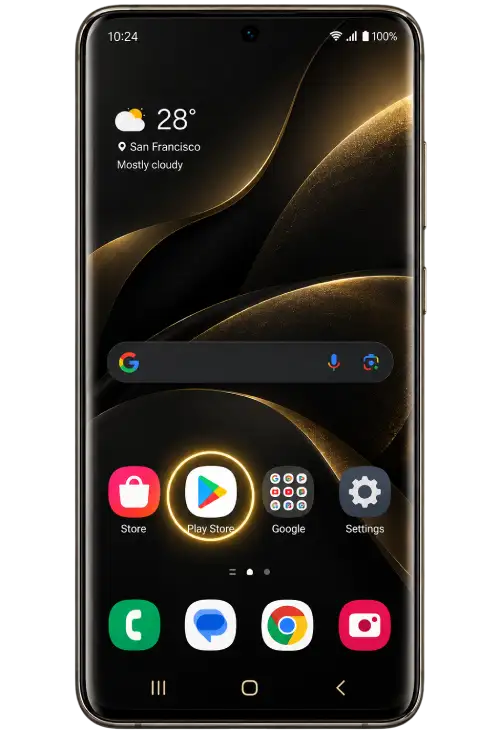
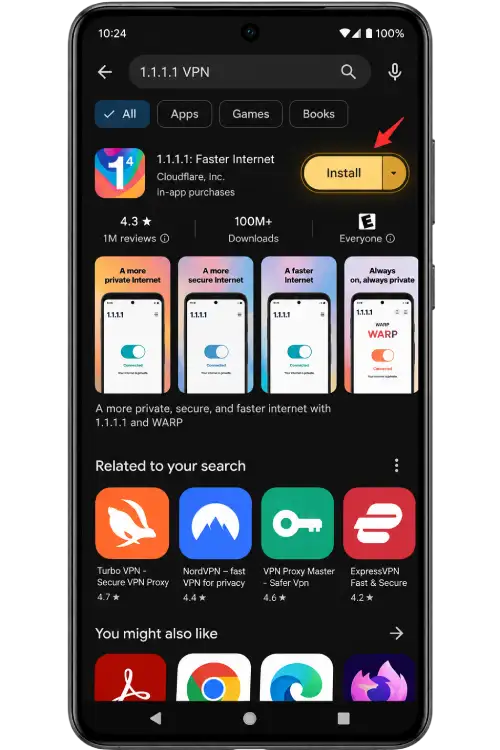
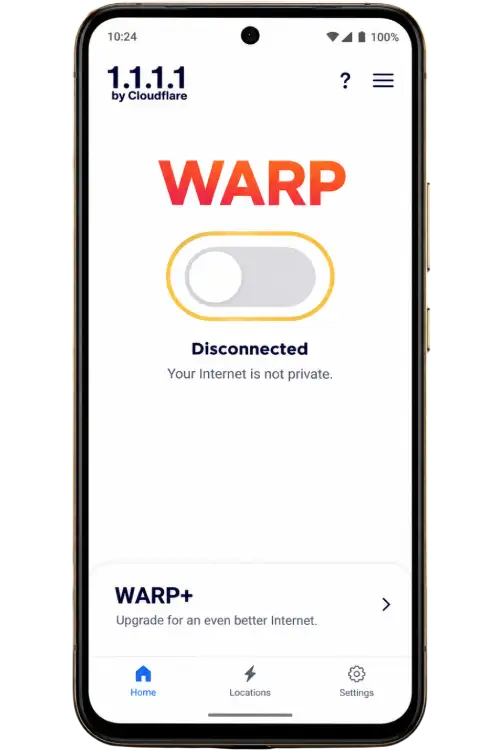
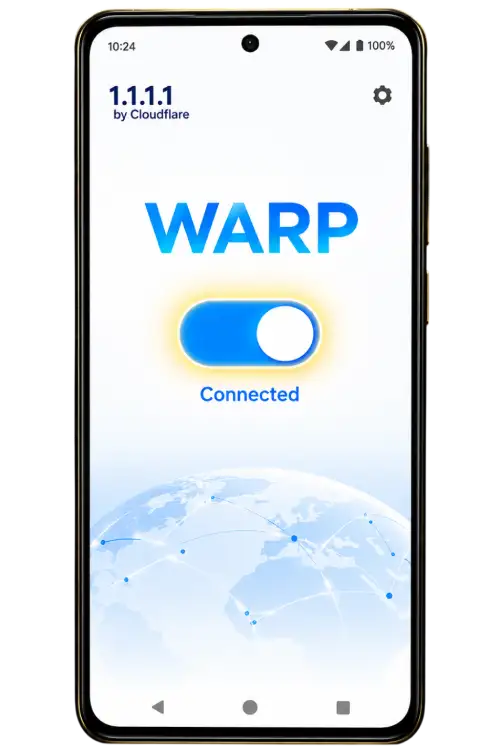
VPN guidance is optional and does not establish application compatibility or correct a rejected password. Review the provider and requested permissions before using a connection tool. If it introduces another error, reverse the change and compare behaviour. Follow the rules of networks you do not manage.
Storage, removal and device changes
Installation files can remain in a download folder after software is installed. Review them and remove only files you recognise and no longer need. Keep private documents and recovery information separate from temporary packages. Do not open an old download solely because its name looks familiar.
Before uninstalling, understand what is stored locally and what belongs to the remote service. Removing an application does not necessarily close an account, cancel a service or end sessions in another browser. Use the relevant account controls for those separate actions.
Review any profiles, special access permissions or installation settings separately after removal. Do not assume every system change is reversed automatically. If changing phones, confirm recovery access before erasing the old device, particularly when verification depends on information stored there.
Prepare a mobile support request
State the stage where the problem occurs and include the device model, operating-system version, browser or application version and approximate time. Describe the public source of a download, but avoid sending a private URL containing account tokens.
Quote the exact error and explain the checks already performed. “The application opens but content remains blank on both connections” provides more useful context than saying only that it is broken. Keep the sequence accurate so the recipient can distinguish old and current behaviour.
Remove passwords, codes, private notifications and account details from screenshots before sharing. Use the Contact page for published channels and the Support guide for broader troubleshooting. Compatibility and private account decisions remain with the actual software or account provider.
jlmayon(mayonjl)mobile questions
Do I need an app to read jlmayon.net?
No. Public guides and navigation are available in a browser. Review any separate application's source and requirements before choosing to install it.
Why is the download button missing?
It appears only when a destination has been published. Its absence does not confirm software availability elsewhere. Use supported browser access or published contact information for clarification.
Can an APK be installed on an iPhone?
An APK is an Android package, not an iPhone application. Follow the distribution method actually offered for your device rather than using unfamiliar conversion tools.
Is a home-screen shortcut a native app?
Not necessarily. It may open a website through a browser. Read the installation prompt and do not assume the icon provides offline access or native application features.
Should I ignore an installation warning?
Stop and understand the warning first. Check the source, publisher and compatibility. Do not disable security protections simply because a download page tells you to.
Will reinstalling fix a password error?
Not necessarily. Credentials, verification and account restrictions require separate checks. Reinstallation can remove local data without changing the account issue.
What should I check before updating?
Confirm the source, storage and compatibility information. Make sure you can sign in again if needed and review new permissions or unexpected signing differences.
Does uninstalling delete my account?
Removing software does not necessarily close a remotely maintained account. Account deletion and related requests must follow the actual service's process.