
Explore this login guide
Before your jlmayon login
The jlmayon(mayonjl) login guide helps you prepare for sign-in and organise troubleshooting when something goes wrong. Begin by identifying the account you intend to access and the destination where that account is held. This page provides instructions, not a login form. It does not ask you to enter a password or send a verification code to read the guidance.
Choose a device you trust and make sure you can reach the contact method associated with your account. If verification is requested, you may need access to your phone, mailbox or another method provided by the service. Allow enough time to read the prompts without rushing between several open tabs. Keeping the process together reduces confusion when a message arrives or an additional step appears.
Separate loading issues from account issues before making changes. A page that does not open needs connection and destination checks. A form that loads but rejects a submission needs a review of the entered details and the displayed message. Neither symptom alone confirms the full condition of an account. Start with what you can observe rather than assuming the cause.
If you do not yet have an account, read the registration guide instead of trying repeated sign-in combinations. If you already registered but cannot remember the details, look for the destination's recovery process. Creating another account without reviewing the service's conditions can complicate an existing access problem.
Check where you are signing in
Open a destination you have checked, then inspect the final address after loading completes. A route or login button can redirect, so review the address shown after the redirect rather than relying only on the label you initially selected. Read the full hostname, including its ending, before entering private account information.
Similar spelling and familiar artwork can make different websites appear related. A logo or orange colour scheme does not independently establish who operates a page. HTTPS protects the connection to the displayed address, but its presence alone does not confirm that the operator is the one you intended to visit.
Stop if your browser displays a certificate warning or if the address is unexpected. Do not bypass a warning merely to see whether a sign-in form appears. If a message provides a replacement login address, confirm it independently using a channel you already trust. The message itself should not be the only evidence for the destination.
Follow the sign-in process carefully
Read the actual form before completing it. The destination decides which account identifiers it accepts and which verification steps apply. A username field, an email field and a telephone field may require different formats. Do not assume that information used on another website is appropriate for this account.
- Open the checked destination and wait for the form to finish loading.
- Read the account field label and enter the matching identifier.
- Enter the password, reviewing keyboard language and accidental spaces.
- Complete any verification through the process you initiated.
- Submit once and read the result before attempting another sign-in.
On a slow connection, repeated taps can create overlapping requests or messages. Wait for a clear result and dismiss the mobile keyboard if it hides part of the page. A validation message may appear above a field or below the visible area, so review the entire form before concluding that nothing happened.
After a successful sign-in, confirm that the account shown is the one you intended to access. Shared devices and saved credentials can lead to another account being selected. If the identifier looks unfamiliar, sign out and investigate before changing settings or completing another action.
Review your account identifier
Begin with the identifier when a submission is rejected. Check spelling, missing characters and the format requested by the destination. An email address should include the intended mailbox and complete domain. A telephone form may have a separate country-code control. Follow the displayed instructions instead of adding or removing digits through guesswork.
Copied text can contain leading or trailing spaces. Mobile autofill may also supply an older email address or a contact entry that does not belong to the account. Inspect each field before submitting. Change one detail at a time so you can understand which correction affected the result.
A general error may intentionally avoid confirming whether an account exists. Do not treat ambiguous wording as proof that your identifier has been deleted or that another person owns it. Use the service's recovery or assistance process when the information remains unclear.
Password entry and saved credentials
Password entry can be affected by capital letters, keyboard language and symbols. A phone may introduce a space when text is copied or changed between fields. If the destination offers a visibility control, use it only when your screen is private. Hide the password again before taking a screenshot or asking someone nearby to inspect an error.
Review the account selected by your password manager. Similar destinations or several saved entries can produce an unintended match. Confirm both the website and identifier before overwriting a stored password. A single failed attempt does not establish that the saved credential needs to be replaced.
If you successfully reset a password, update the correct saved entry afterwards. Use a unique password rather than reusing one from an email account or unrelated service. Keep credentials out of shared notes, public conversations and image galleries, where other people or connected devices may be able to see them.
Handle verification codes privately
Read the destination's verification instructions before requesting a code. Check where it says the message will be delivered and whether the contact hint matches a method you control. Do not assume a code will arrive by text message when the page describes email or another verification method.
If a message does not arrive, check the information already entered and follow the displayed waiting period. For email, review relevant folders. For a phone, confirm that it can receive messages and has a usable signal. Avoid requesting several codes rapidly, because delayed messages may arrive out of order.
Enter the code only in the process that requested it. If you restarted the form or moved to another tab, review which request is current. Do not forward a code to someone claiming to check, activate or repair your account. A support conversation is not a replacement for the checked verification form.
An unexpected verification message does not require you to follow its link. It may result from an incorrect identifier or an attempt you did not initiate. Review account security through a checked destination when appropriate, keeping the message and any private tokens out of public reports.
Use the available recovery process
If you cannot remember your password, use the recovery option on the checked destination. Its wording and available methods depend on the service. This guide cannot reset credentials or establish which recovery method your account supports. Read the current instructions rather than assuming an earlier process still applies.
Keep recovery in one browser tab where possible. When a message arrives, check that it corresponds to the action you just initiated. Recovery links can contain private tokens; do not forward them, paste them into a group or include their complete addresses in a screenshot.
Choose a new, unique password if the process permits a reset. After confirmation, return to the checked sign-in destination and review the account displayed. If the service offers session review, consider ending unfamiliar sessions when unauthorised access is suspected.
If you no longer control the registered contact method, use the service's account assistance process. Explain which method is unavailable without sending unnecessary personal information. Do not create repeated registrations to bypass an ownership question or send documents to an unverified profile promising faster recovery.
Understand the message on screen
Record the exact wording of an error and the action that produced it. “The page times out before the form appears” describes a different problem from “the form rejects the password.” Accurate observations help you select a useful check and explain the issue if assistance is needed.
| Symptom | First check |
|---|---|
| Page does not open | Address, network and browser error wording. |
| Details are rejected | Identifier format, keyboard and saved entry. |
| Code is missing | Contact hint, delivery method and waiting period. |
| Attempt limit appears | Pause and follow the service's instructions. |
| Session ends repeatedly | Multiple tabs, browser storage and connection changes. |
If an attempt limit appears, stop submitting and follow the stated waiting instruction. Switching routes repeatedly does not resolve the underlying account protection. This website cannot determine the duration of a limit or remove a restriction imposed by the destination.
Messages about account eligibility, verification decisions or restrictions belong with the service controlling the account. A browser change or connection tool does not alter those requirements. Keep such questions separate from ordinary loading troubleshooting.
Browser and mobile checks
On a phone, dismiss the keyboard and inspect the full form after submission. An error can appear outside the visible area. Check whether the page is still loading and whether you returned to the same tab after reading a verification message. Older tabs can contain expired or unrelated requests.
Browsers inside social or messaging applications may handle sessions differently from your usual browser. If a process does not complete there, compare the checked destination in a standalone browser. Keep private links out of public messages when transferring between applications, and review whether the process must be restarted.
A private window can help compare behaviour involving stored data or extensions. It does not verify a destination or correct account details, and its cookie settings may differ. Treat a changed result as a clue about browser behaviour, not a reason to delete all browsing information immediately.
Clearing site data may sign you out and remove remembered preferences. Prefer controls for the affected site over deleting unrelated data. Before doing so, make sure you know the account identifier and can access recovery information needed for another sign-in.
Investigate loading problems separately
If the login page never opens, test another familiar website on the same connection. When several sites fail, inspect the network before changing credentials. Public Wi-Fi may require its own sign-in, and a wireless indicator does not always mean internet access is working.
If other websites load, record the affected domain and browser message. Try another published route once where appropriate. Comparing Wi-Fi with mobile data can help identify a network difference, but consider charges and change only one condition at a time.
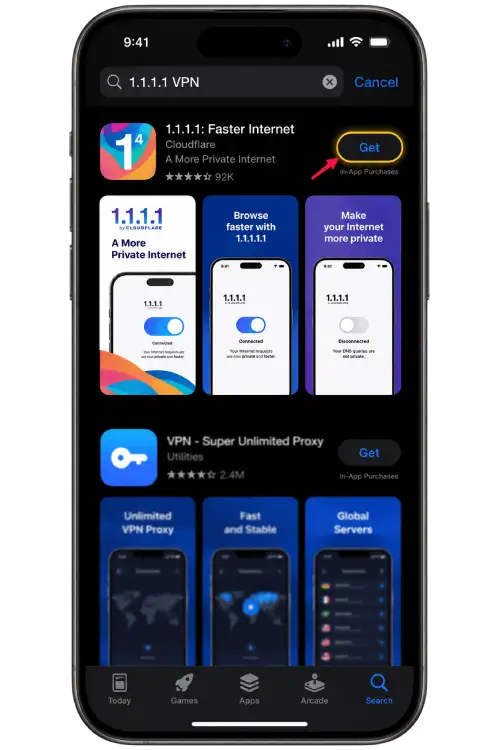
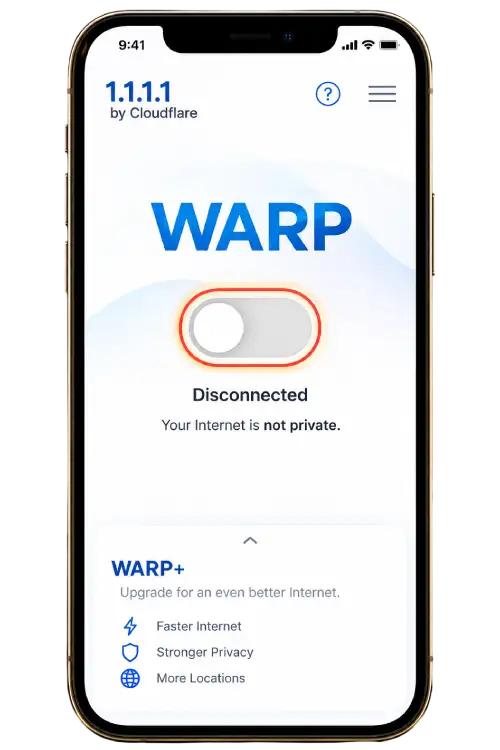
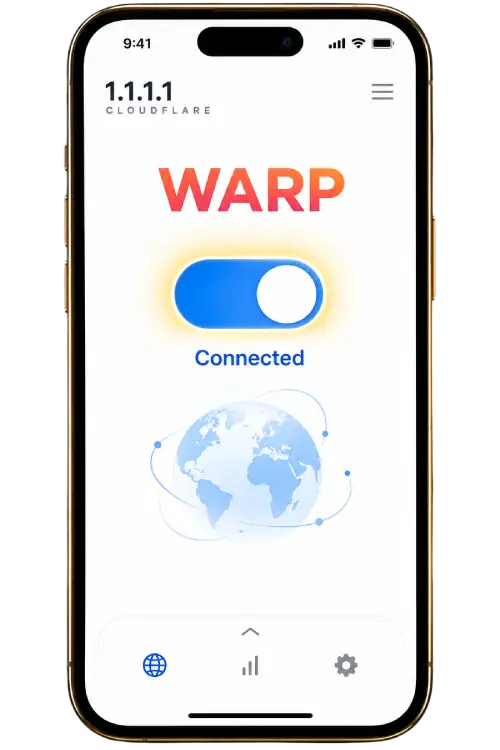
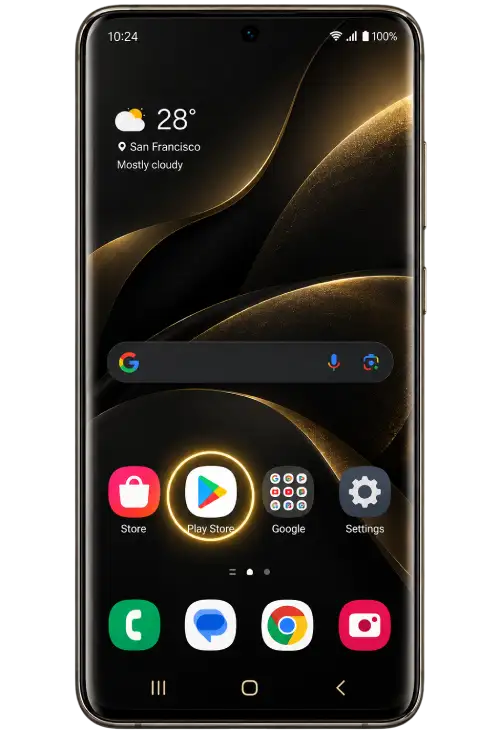
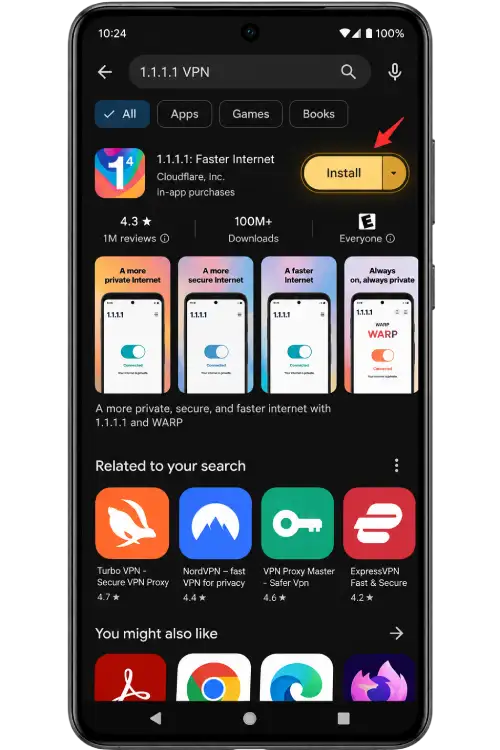
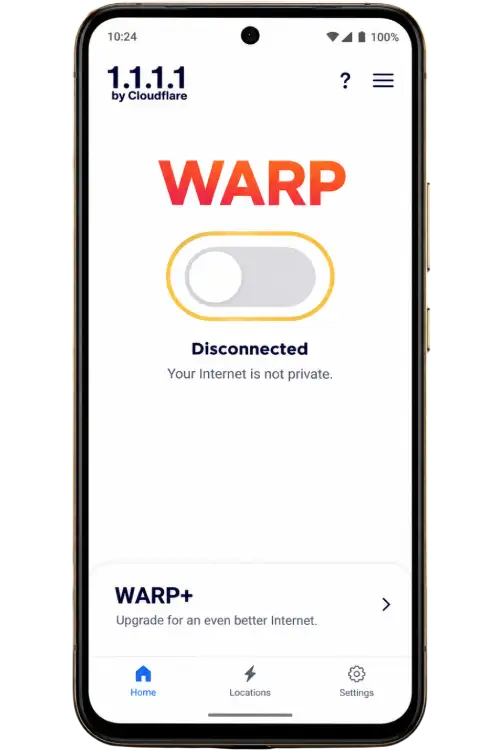
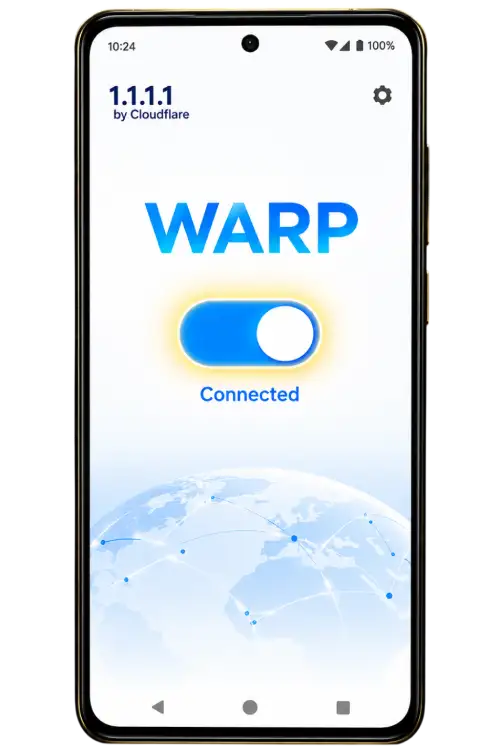
The optional VPN tutorial explains setup checks rather than a guaranteed solution. A VPN cannot correct a password, establish ownership or approve an account. If a connection tool creates another error, reverse the change and compare the result. Follow network rules and the destination's requirements.
Visit the Support guide for broader connection troubleshooting. Avoid disabling security protections or granting remote access merely because an unfamiliar message claims those actions are necessary to load a sign-in page.
Sessions and shared devices
A session may end because of inactivity, browser settings or a service-side action. If you are returned to a login form, inspect the address again before entering details. Keep the current process separate from earlier tabs and verification requests.
On a shared device, avoid saving credentials unintentionally. Consider who can open the browser or password manager afterwards. Use the service's sign-out control when finished; closing a tab or returning to the phone's home screen may leave a session active.
If you suspect unauthorised access, use available account security controls from a trusted device. Review sessions and recovery details where those features exist. Protect the associated email or telephone account as well. Clearing local browser history does not end an account session on another device.
Pause at unexpected requests
An urgent message asking you to sign in through a newly supplied link should be checked independently. Claims about immediate account closure or mandatory activation do not verify the sender. Open a destination you have already reviewed rather than relying on the message as proof.
Do not give someone remote control of your phone or computer to resolve a routine login issue. Remote access can expose unrelated messages, accounts and stored information. Avoid screen sharing while a password, verification code or recovery link is visible.
If credentials were entered at an unexpected address, stop using that page and secure the affected account through a checked destination. Change reused passwords on other services where necessary. Describe the incident without posting the exposed credentials or private links in a public report.
Prepare a useful support request
Explain what you attempted and where the process stopped. Include the approximate time, destination domain, device type, browser and exact error wording. State whether the form loaded, whether submission occurred and whether verification was requested. A clear sequence is more useful than saying only that login does not work.
List the checks already tried and what happened after each one. If the problem affects only one browser or connection, say so. Keep timing accurate: a screenshot from an earlier attempt may not represent the latest behaviour. Avoid repeating resets or installations that add no new information.
Remove passwords, codes, recovery tokens and private contact details from screenshots. Check the address bar and notifications as well as the main form. Use the Contact page for published channels, and verify whether the destination is a private conversation or a group.
Private account decisions must follow the actual service's assistance process. This guide cannot inspect account records or promise a recovery outcome. For mobile installation questions, use the App guide so download checks remain separate from account troubleshooting.
jlmayon(mayonjl)login questions
Can I enter a password on this page?
This page is a guide and has no account login form. Sign-in actions take place at the destination service. Check its final address before entering credentials or completing verification.
Why is the login button missing?
A direct button appears only when a login destination is published. Its absence does not indicate an account problem. Review published access information or contact options rather than guessing another address.
Should I register again if login fails?
First review your existing details and recovery options. Another registration may complicate account access or conflict with the service's rules. Follow its instructions for the account you already hold.
Can another route reset my password?
Changing a route is a connection check, not a password reset. Recovery follows the actual service's process. Do not assume credentials apply to another domain without checking the destination.
What if several verification codes arrive?
Review the instructions for your current request. Delayed messages may arrive out of order, and earlier codes may no longer apply. Avoid additional requests until you understand the current step.
Is private browsing a guaranteed fix?
No. It can help compare behaviour involving browser data or extensions, but does not verify a website, correct credentials or remove account restrictions.
What should I include in a screenshot?
Show the relevant error and provide context in your message. Remove passwords, codes, recovery links and private notifications. The public domain is usually more appropriate than a complete private URL.
What should I check after signing in?
Confirm the displayed account is yours. Review unexpected prompts before accepting them and sign out on shared devices when finished. Keep your recovery contact accessible for future account checks.