
Find the right support section
Start with what you can observe
The jlmayon(mayonjl) Support guide helps you organise a problem before changing settings or requesting assistance. Begin with the point where the process stops. A page that never opens, a form that rejects a password and an application that closes unexpectedly are different symptoms. Each calls for a different first check.
Write down the action you attempted and the exact result. Include whether the issue occurred before loading, during submission, while waiting for verification or after an account session opened. Accurate observations help you select relevant guidance without drawing conclusions that the available evidence does not support.
Work through one check at a time. If you change the network, clear stored data, reset a password and reinstall software together, you cannot easily identify which action affected the outcome. Keep a short record of each change and its result. That record also makes a later support conversation more useful.
These public guides cannot inspect private account records or decide whether an account should be approved. Connection troubleshooting explains loading behaviour; account ownership, restrictions and recovery decisions belong with the service controlling the account. Keep those questions separate when describing the problem.
When a page will not open
Open another familiar website in the same browser. If several destinations fail, check your ordinary connection before changing account details. Confirm that Wi-Fi or mobile data is enabled and usable. A wireless icon can appear even when the connection has no internet access.
Public Wi-Fi may require a separate sign-in screen before other websites become available. Read any network prompt and follow its requirements. On a workplace, school or managed connection, ask the responsible administrator when appropriate. A policy restriction is different from an accidental connection failure.
If other websites load, inspect the affected address and error wording. A timeout, name-resolution error and certificate warning describe different conditions. Record the public domain and message without including private recovery tokens or account information from the URL.
Reload once after checking the connection. Compare Wi-Fi and mobile data only when appropriate, considering potential charges. Do not bypass a certificate warning or install unrelated software merely to see whether the page opens. Stop when a requested change is unclear.
Understand access route behaviour
The homepage provides three route slots. A usable arrow button appears when a destination has been published. An unavailable slot does not indicate that a private account is blocked or that every service is offline. It means that no usable destination is currently supplied in that position.
If one published route fails, try another published option once. Review the final address after any redirect and before entering credentials. Route numbering identifies choices rather than ranking speed or guaranteeing availability. Do not assume account details apply to an unfamiliar destination.
Avoid guessing replacement domains based on similar spelling. A copied logo or message claiming a new address is not sufficient verification. If the available routes remain inaccessible, record the different results and use a published contact channel for clarification.
Browser and display checks
Allow loading to finish before deciding that a button or form section is missing. On a phone, dismiss the keyboard and inspect the whole page. Validation messages may appear above a field or below the visible area. Check whether you are viewing the current tab rather than an earlier attempt.
A browser embedded inside a social or messaging application can handle navigation differently from your usual browser. Compare the checked destination in a standalone browser if a process does not finish. Keep private verification URLs out of public messages when moving between applications.
A private window can help compare behaviour involving stored site data or extensions. It does not verify a website or remove account restrictions. Cookie rules may also differ, so treat a changed result as a diagnostic clue rather than proof that all existing browser data should be deleted.
If you choose to clear stored information, prefer controls for the affected site. Removing cookies can end sessions and erase preferences. Before making that change, ensure you know your account identifier and can access the recovery method needed for another sign-in.
VPN tutorial and connection guidance
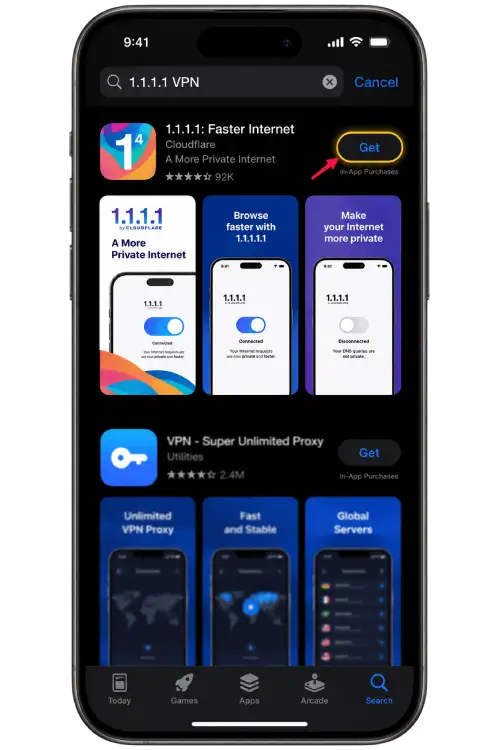
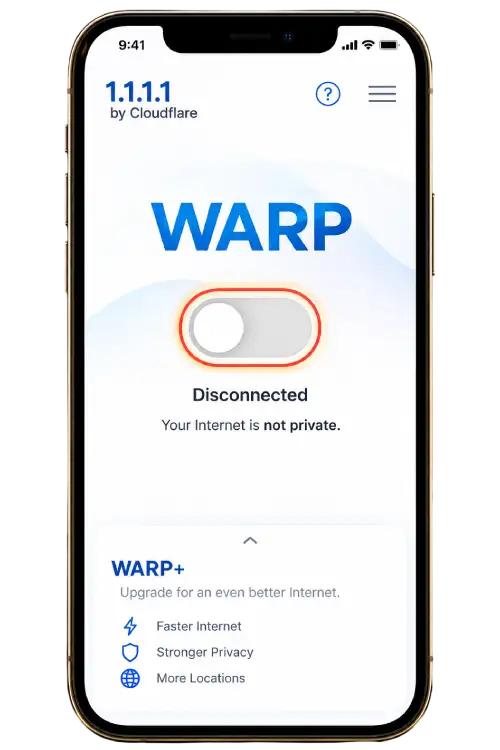
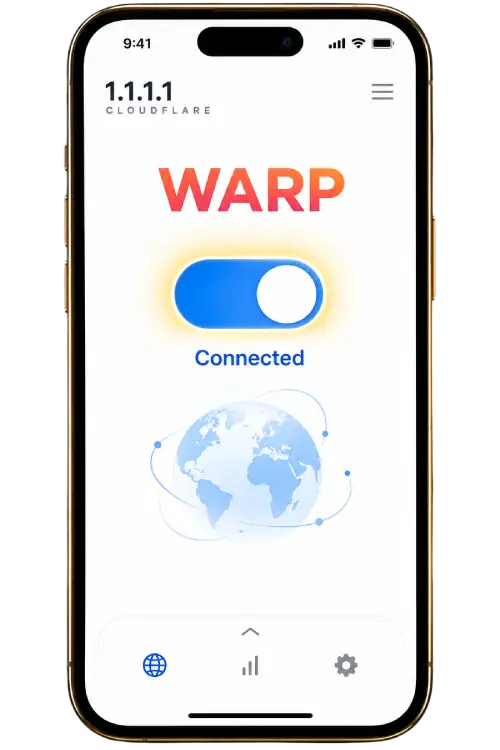
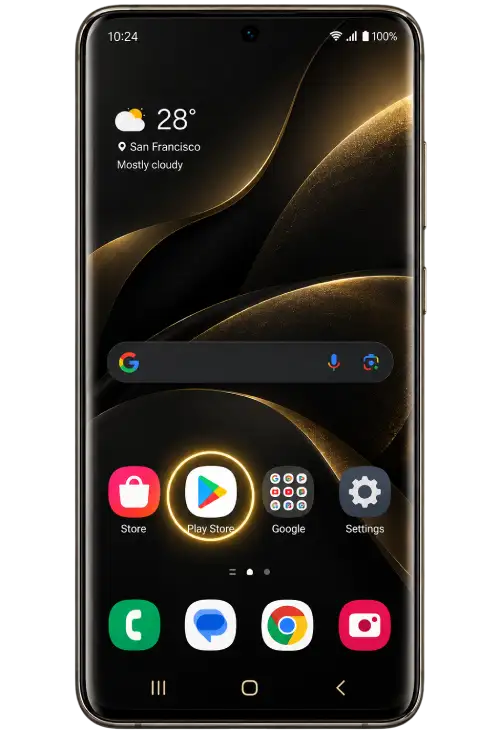
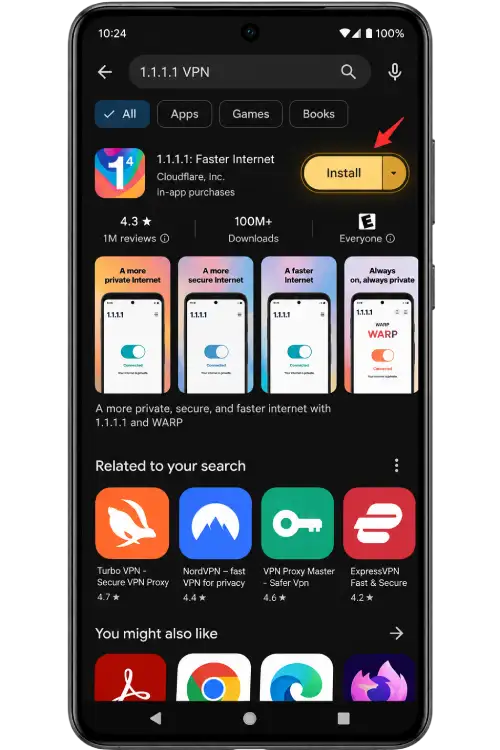
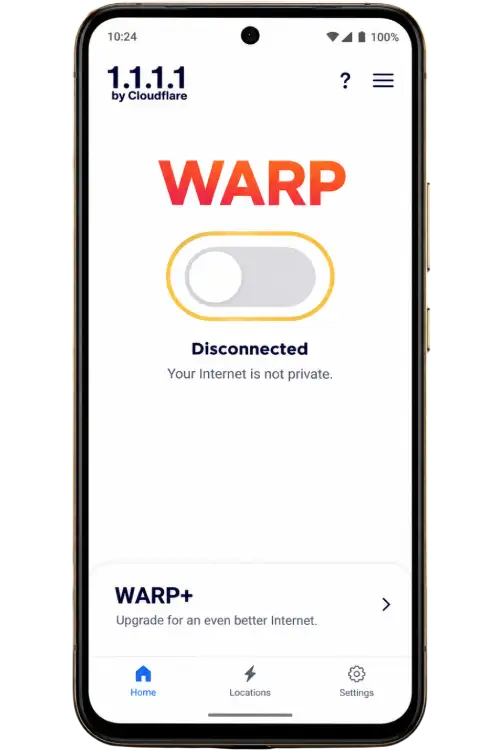
The picture tutorial provides separate iPhone / iOS and Android steps. Select your device and read each instruction before continuing. The download control opens the configured provider destination. Review the application identity, publisher and device requirements before installation.
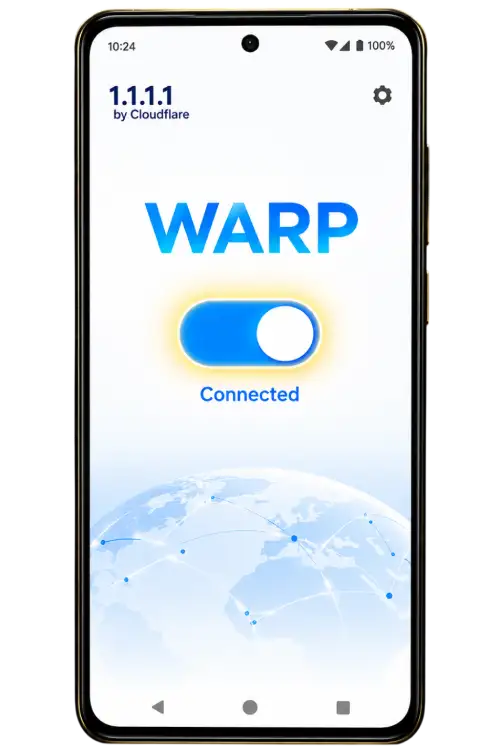
Screens and permission messages may differ by operating-system or application version. Follow the meaning of a step rather than approving an unfamiliar request automatically. If the process differs substantially, review the provider's own instructions before changing device settings.
- Open the relevant application store or provider page.
- Verify the application and its publisher before downloading.
- Read the setup explanation and connection permission request.
- If you choose to connect, check the displayed status before returning to the browser.
VPN use is optional and does not guarantee access. It cannot correct a password, establish account ownership or change eligibility. If enabling a connection tool introduces another error, reverse the change and compare the result. Follow applicable requirements and network rules.
Login and password assistance
If the sign-in page loads but rejects a submission, read the error before changing the connection. Check the identifier requested by the form and inspect typing, formatting and accidental spaces. A username, telephone number and email field can have different requirements.
Review keyboard language, capital letters and the saved credential selected by your password manager. Similar addresses or several saved accounts can produce an unintended match. Do not overwrite a stored password merely because one attempt failed; first confirm the destination and account identifier.
Use the destination's recovery process if you cannot remember the password. Keep recovery links private and complete the request you initiated. If an attempt limit appears, pause and follow the displayed instructions rather than submitting faster or switching repeatedly between routes.
The Login guide provides more detailed checks. This website cannot remove account restrictions or determine the duration of another service's protective limit. Direct account decisions to the service holding the relevant records.
Registration form problems
Identify whether registration stopped at a required field, verification or final submission. Read the message next to the affected control. Correct a clearly identified format problem according to the displayed rule rather than changing unrelated browser settings.
Review contact details and autofill carefully. A saved address may be outdated or belong to someone else who used the device. Check country-code selections and password confirmation where relevant. Dismiss the keyboard to inspect the whole form before submitting another request.
If an identifier is already in use, consider whether an account exists and review recovery options. Do not create repeated variations while the original result remains unclear. The Registration guide explains preparation, verification and result checks in more detail.
Missing or rejected verification messages
Read where the service says a message will arrive and check the contact hint. An email, telephone number and authenticator process involve different checks. Do not assume delivery has failed through one channel when the instructions identify another.
Wait for the displayed resend period. Repeated requests can produce delayed messages that arrive out of order. A code associated with an earlier attempt may no longer apply. Keep the current request in view and follow its instructions rather than guessing a universal expiry time.
Enter codes only in the checked process you initiated. Do not send them to support profiles or public groups. If verification is tied to a contact method you no longer control, use the actual service's account assistance process instead of asking another person to receive the code for you.
Application and mobile problems
Separate downloading, installation, opening and account sign-in. A partial transfer needs different checks from a rejected package or a password error. Record the exact device message and confirm the download source before trying another installation.
Check the publisher and supported platform. An Android package is not an iPhone application, and a familiar icon does not verify a file. Stop at unexplained security warnings rather than disabling protections to finish an uncertain download.
If software closes unexpectedly, note whether it happens immediately or after a particular action. Record the application and system versions. Restarting can help assess a temporary condition, but repeated reinstallations can delete local information without resolving the cause.
Before clearing application data or uninstalling, make sure you can sign in again and understand what may be removed. Review the App and mobile guide for permissions, updates and compatibility considerations. Removing software does not necessarily close a remote account.
Sessions and shared devices
A session can end after inactivity, a browser change or an action by the service. If a login form reappears, inspect its address before entering details. Avoid several active sign-in tabs, since old messages and codes can be confused with the current request.
Use the service's sign-out control when finished on a shared device. Closing a tab or application may leave an account session active. Check whether credentials were saved unintentionally and keep recovery information out of shared notes and downloads.
If unauthorised access is suspected, use available security controls from a trusted device. Review sessions and contact details where those features exist. Questions about ownership and contact changes must follow the actual service's process; this guide cannot inspect private account records.
Prepare a useful support report
Describe what you expected and what actually happened. Include the action immediately before the error. A clear sequence helps distinguish a form problem from a wider network issue without exposing your credentials. Report observations rather than an account status you have not confirmed.
- The affected public domain or page.
- The approximate time and time zone.
- The device, operating system and browser or app version.
- The exact error wording.
- Whether it happens on Wi-Fi, mobile data or both.
- Each check already completed and its result.
Keep timing accurate when sharing evidence. A screenshot from an earlier attempt may differ from the latest behaviour. State whether the problem is consistent or intermittent and whether another device produces the same result. These details provide context without requiring private account information.
Keep a private copy of your description so you can follow up without recreating the sequence from memory. Do not include passwords, codes or recovery links in that record. A concise report with relevant facts is more useful than several unexplained screenshots.
Protect information when asking for help
Review screenshots before sending. Remove passwords, verification codes, private notifications and full contact details. Inspect the browser address bar as well as the main page, since recovery or session tokens can appear in an address.
Check whether a contact opens a private conversation or a group visible to other participants. A platform name, profile picture or familiar display name does not independently verify the recipient. Review any request to move the conversation to another profile.
Do not grant remote control to resolve a routine access issue. Remote access can expose unrelated accounts and messages. A redacted screenshot and clear written report are more appropriate for many technical questions. Ask why unfamiliar information is needed before supplying it.
Contact the relevant channel and follow up
Use the Contact page for published website channels. Availability depends on the actual channel; a visible button does not establish continuous staffing or a guaranteed response period. Avoid sending the same private material to several unfamiliar profiles.
When following up, refer to the original enquiry if a reference was supplied and explain what changed. State whether the issue continues, whether a different message appears and whether a suggested check affected the result. Keep related details together.
Website feedback and private account decisions have different recipients. A broken guide link concerns this website. Account ownership or verification approval concerns the service controlling the account. Choosing the relevant process helps avoid unnecessary disclosure and repeated explanations.
If a problem resolves, record the observation without assuming it proves a universal fix. Network or service conditions may have changed independently. Retain only the information needed for the enquiry and remove unnecessary screenshots containing private details.
jlmayon(mayonjl)support questions
Where are the contact channels?
Published channels are listed on the Contact page. Check the account or destination that opens before sending a message, and keep credentials out of the conversation.
Can this guide reset my password?
No. Recovery takes place through the account service's process. This website provides guidance and does not collect passwords or inspect private account records.
Does a route failure mean my account is blocked?
A loading error alone does not confirm account status. Review the browser error and connection first. Account restrictions must be clarified with the service holding the account.
Is a VPN needed for every connection problem?
Start with ordinary network and browser checks. VPN use is optional and does not guarantee access or resolve credentials and eligibility questions.
Why does the tutorial differ from my screen?
Application versions and system prompts can vary. Select the correct device tab and review the provider's instructions if a request differs substantially.
Should I send a verification code to support?
No. Enter codes only in the checked process you initiated. Do not post them in groups or forward them to a person claiming to activate an account.
How long will a reply take?
Response times depend on the actual channel. No fixed reply period is promised here. Provide a clear report and follow any instructions published by that channel.
What should accompany a screenshot?
Include the approximate time, public domain, device and steps that produced the message. Remove private details, recovery links, passwords and codes first.